Cell Phones
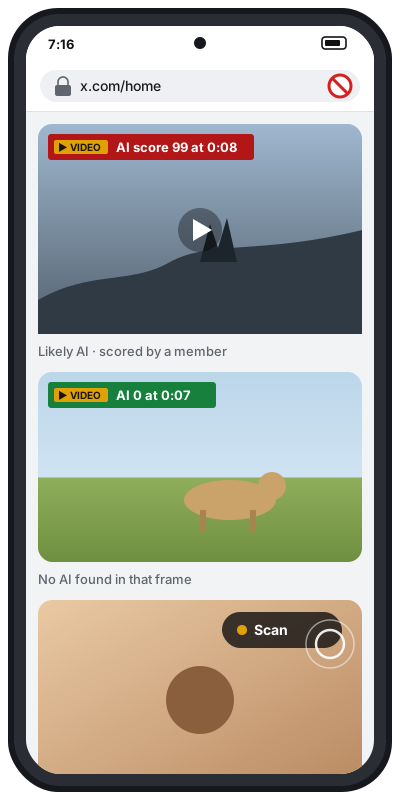
To use AI Fatigue on your cell phone, here’s what you do: watch X, Facebook, Instagram, TikTok, and YouTube in the Microsoft Edge browser on Android instead of their apps. Then you can see the AI score on a video before you believe it, right on your phone.
Status: AI Fatigue is now in the Microsoft Edge Add-ons store. It works in Edge on a computer today. Microsoft still has to turn it on for Edge on phones, and we’re asking them to. Until then, the phone steps below are ready and waiting. On a computer it also works in Chrome and Brave.
01
Why not the apps?
The X, Facebook, Instagram, TikTok, and YouTube apps don’t run browser extensions. Nothing outside the app can put a score or a button on their videos. A browser can. Edge on Android lets you add extensions on a phone, and those same sites work fine in it. Same feed, same account, plus a score on the videos.
02
Set it up on Android
- Get Microsoft Edge from the Google Play Store. It’s free.
- Add AI Fatigue. In Edge, tap the menu (☰) at the bottom, then Extensions, find AI Fatigue, and tap Get. (It shows up there once Microsoft turns it on for phones.)
- Uninstall the X app (and any other app you want to watch in Edge), or keep it and turn off its links (see “Keep links out of the apps” below). Otherwise x.com keeps jumping out of Edge and into the app, where AI Fatigue can’t run.
- Open your feeds in Edge. Go to x.com, facebook.com, instagram.com, tiktok.com, or youtube.com and sign in once. Add each one to your home screen from the Edge menu so it opens like an app.
- Check before you share. Scores other people already found show up on their own. On a video with no score, tap Scan if you’re a member, or Request check if you’re not. Nothing is scanned unless you tap.
03
Reading the score
Red, high number: the frame looks generated by AI. Treat the video as likely AI until you know more.
Green, 0: no AI was found in that frame. That is a good sign, not proof. Movie effects, heavy compression, and old footage with a new caption can still score low. Why some clips score 0.
A video is only covered for everyone after 5 different paid members, each with their own scan of 50 or higher, tag it. One person can’t do it alone. See how a clip gets covered.
04
Keep links out of the apps
If the X app (or Facebook, Instagram, TikTok, YouTube) is still installed, opening the site often jumps straight into the app, and AI Fatigue disappears. The simplest fix is to uninstall the app. To keep the app but stay in Edge instead: open your phone’s Settings, then Apps, pick the app (X, Facebook, Instagram, TikTok, or YouTube), tap Open by default, and turn off Open supported links. The wording can vary a little by phone.
05
iPhone
Not supported. Edge on iPhone doesn’t let us add AI Fatigue, so for now use it on an Android phone or a computer.
06
Get it
Questions? Email support@aifatigue.us and say which phone you have. More help is on the support page.